
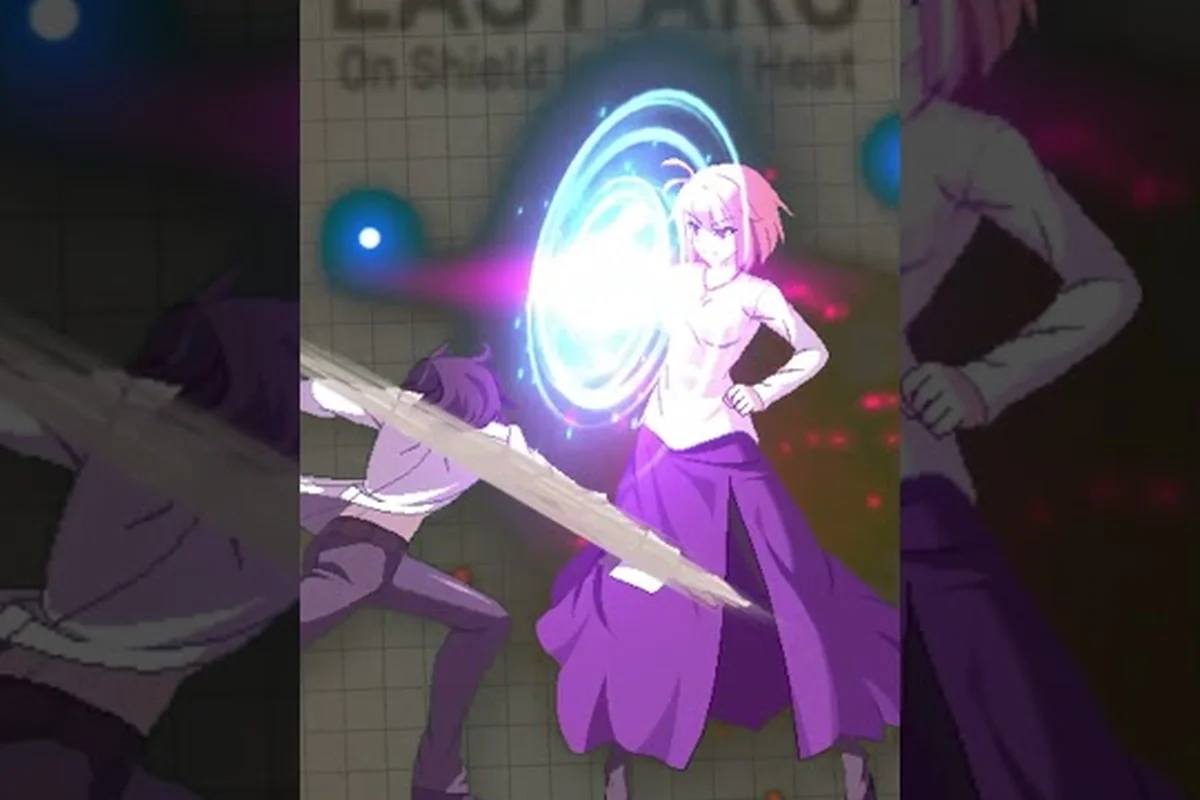
Melty Blood: Twi-Lumina classic controls run on the same six-button, stick-or-pad layout the series has used since Type Lumina, which means every quarter circle and dragon punch motion you practiced on the previous build still fires the same special in this one. If you are coming from a different 2D fighter, the good news is that the classic scheme borrows the universal Capcom-style notation rather than inventing a new scheme, so muscle memory from Street Fighter 6, Guilty Gear Strive, or Under Night translates almost line-for-line once you set your button config.
Default Button Layout and What Each Slot Does
The default button layout in Twi-Lumina mirrors Type Lumina one-for-one, and the official how-to guide treats the Light/Medium/Heavy/Ex pairing as the foundation of the entire control scheme. Before you change anything, it helps to understand what each slot is responsible for, because the same buttons double as normals, Rapid Beat triggers, and Shield inputs depending on context.
| Notation | Default Keyboard | Pad Equivalent | Primary Use |
|---|---|---|---|
| A (Light) | J | X / Square | Fastest normal, Rapid Beat starter, 1A chain starter |
| B (Medium) | K | Y / Triangle | Midspeed pokes, anti-air filler, 2B low chains |
| C (Heavy) | L | RB / R1 | Heavy normals, launcher-style hit, Shield break starter |
| D (Ex) | ; | RT / R2 | Ex specials, Moon Skill, EX Moon Drive, B+C system moves |
| Macro A+B | Space (default) | LB / L1 | Throw, Rapid Beat ender, command normal |
| Macro A+B+C | (unbound default) | LT / L2 | Shield Counter, parry, B+C universal input |
The Macro A+B+C slot is the one most players rebind first, because Shield is the single most important defensive system in the game and reaching for a keyboard semicolon mid-combo is awkward. Pad users typically map it to a shoulder button so the index finger can press it without leaving the right-hand cluster.
Keyboard vs Pad Defaults That Matter
The community guide from TheGamer notes that Rapid Beat is the system newcomers miss most, because it only triggers when the same attack button is pressed twice in a row during a combo string. Holding 1 or 4 (back) deliberately cancels the auto-combo, which is the trick advanced players use to swap into Moon Skill or Shield without burning the chain. That single fact — the same-button mash is the trigger — is why rebinding Shield away from the semicolon is the first config change most players make.
A second default worth keeping is the A+B macro on Space, because the same input covers throws, command normal cancels, and Rapid Beat finishers depending on what your character is doing. Moving it to a tight thumb position rather than a pinky-stretched key keeps your left hand anchored over the WASD block, which is the whole reason the default exists.
Motion Inputs Reference: Every Classic Command You Need
The motion inputs list for Twi-Lumina is identical to the Type Lumina roster's classic scheme, and Fighting Game Guide's technical reference confirms that the universal notation is the source of truth rather than a per-character variant. The seven motions below cover roughly 95% of every special move in the game, which means once these are clean on your stick or pad you can play any character at a functional level.
| Motion | Notation | Common Specials | Difficulty |
|---|---|---|---|
| Quarter Circle Forward | 236 + button | Fireballs, advancing specials | Easy |
| Quarter Circle Back | 214 + button | Reversal specials, retreats | Easy |
| Dragon Punch (Forward) | 623 + button | Uppercut invuln reversals | Medium |
| Dragon Punch (Charge) | [4]6 + button | Charge uppercuts, command dashes | Medium |
| Half Circle Forward | 41236 + button | Multi-hit rekka, 360-lite | Hard |
| Half Circle Back | 63214 + button | Spinning kicks, command throws | Hard |
| Full Circle | 41236478 + button | 360 grapples, super flashes | Hardest |
The Dragon Punch input is the motion that rewards the most practice, because every character has at least one reversal that uses it, and the input buffer window in Twi-Lumina is forgiving enough that clean 623s land consistently within an hour of training. Quarter circle inputs are the most frequent special trigger in the game, so learning the 236 motion before anything else keeps you competitive on roughly a third of the roster from your very first online match.
Charge Motions: The Secret Layer Most Beginners Skip
The fighting-game community widely notes that the charge variant — [4]6 for forward-charge, [1]3 for back-charge — is the input newcomers forget exists, because Twi-Lumina does not surface it in the tutorial. Characters with command dashes or charge uppercuts (Kohaku's command run, Shiki Tohno's charged seventh) all rely on this motion, and the input buffer counts hold time generously so you can charge while blocking.
If you are using a d-pad, hold back for roughly 40 frames before the forward tap, then let the special go on the same frame you release. On hitbox or analog stick the timing is looser, which is one of the few cases where the pad default is genuinely easier than a keyboard layout. The input buffer in Twi-Lumina was tuned larger than Type Lumina's, so the same charge motion that felt frame-tight on the previous build now gives you a one-frame leniency window that makes reversal attempts much more forgiving.
Setting Up Your Button Config for Tournament Play
The button config that tournament players settle on in Twi-Lumina keeps the four-button face layout intact, because the Rapid Beat, Shield, and Moon Skill systems all reference those face buttons in the system code. What changes is the placement of the macro shortcuts, the dash toggle, and the macro for the universal 236+236 super input. According to community data shared on the r/Fighters breakdown, the most common pad rebind is moving Shield to L2/LT so the thumb can stay on the right analog for throw attempts.
| Setting | Default | Tournament Recommendation | Why |
|---|---|---|---|
| Shield Counter | A+B+C on ; | LT or L2 | Faster than reaching to semicolon, thumb stays on d-pad |
| Throw | A+D | A+D unchanged | Universal input, do not rebind |
| Dash Toggle | Off | On for keyboard, off for pad | Prevents accidental dashing on stick |
| Input Buffer | 6 frames | 8 frames | More lenient window for online play |
| Rapid Beat Toggle | On | On for learning, off for execution practice | Lets you practice real combos without the system shortcut |
| Macro Super | Off | Optional, only for arcade mode | Online play often disallows macros |
The Rapid Beat Toggle is the one setting that splits the community, because turning it off is how you practice real combo routes, but leaving it on during a learning phase teaches you the system's rhythm and keeps you in the match longer. The official how-to guide on the Melty Blood: Type Lumina site walks through both modes, and the Twi-Lumina version inherits the same toggle in the controls menu.
Keyboard Layout Tips for Stick-Newcomers
If you are coming from a different genre and the WASD movement feels unnatural, the most common keyboard layout used by the community is WASD for direction, J/K/L for A/B/C, and U or Space for Shield. The semicolon default works fine, but reaching for it under pressure is the single most common input error reported in beginner threads, so moving Shield to a thumb key like Space is a one-line config change that immediately raises your match consistency.
The official Twi-Lumina control breakdown covers how the shield counter chains into Moon Drive follow-ups, and the same macro slot that fires Shield also triggers the B+C system moves, so do not bind Shield to a button that is already used for a normal. Keeping D (Ex) on a finger that does not move is the simplest rule for a clean button config.
Command Inputs by Character Archetype
The command inputs differ slightly between archetypes, which is why learning the universal motion set first and then specializing is faster than memorizing a per-character list. The four archetypes below cover every character currently in the roster, and each one has a signature motion that defines how the character plays.
| Archetype | Signature Motion | Example Character | Playstyle Cue |
|---|---|---|---|
| Rushdown | 623 reversal, 214 rekka | Shiki Tohno | High-pressure, dragon punch chains |
| Zoner | 236 projectile, 22 command | Arcueid | Quarter circle spam, keepaway |
| Grappler | 360 throw, 63214 command | Hisui | Half-circle motions, hard reads |
| Balanced | 236 specials, 623 reversal | Tohno (both) | Quarter circle base with dragon punch layer |
Rushdown characters rely on dragon punch inputs the most, because the reversal uppercut is the only defensive option that punishes opponents who jump in. Learning 623 until it is muscle memory is the single biggest payoff for any Shiki main, and the same motion on Arcueid or Tohno gives you a fast anti-air that wins trades with most jump-in attacks.
Quarter Circle Inputs as Your Foundation
The quarter circle input (236) is the most-used motion in the entire game, and it is the one you should drill first in training mode. According to TheGamer's beginner tips, learning the motion on a single character takes roughly 30 minutes of focused practice, and the same motion translates to every fireball, advancing special, and most command normals in the game. If you can do a clean 236+P on the first try, you can play roughly 70% of the roster at a basic level.
Half circle motions (41236 and 63214) are the next layer, and these are the inputs that separate mid-level players from beginners. The half circle forward typically triggers a multi-hit rekka that is the bread-and-butter combo route for rushdown characters, while the half circle back feeds grappler command throws. The Twi-Lumina input list breaks these down per character if you want to specialize after the universal layer is clean.
Advanced: Input Buffer, Macros, and Online Play
Twi-Lumina's input buffer is more lenient than Type Lumina's, which is one of the changes the Twi-Lumina move changes from Type Lumina guide covers in detail. The buffer window widened from 6 frames to 8 frames on most special motions, which means quarter circle inputs that felt frame-tight online now land consistently even with moderate connection lag. This is also why tournament players recommend the 8-frame buffer setting over the default 6.
Macros are another area where the new version differs from the predecessor, and the Twi-Lumina gamepad support guide covers the full list of legal controller bindings. The short version: online ranked play in Twi-Lumina disallows the 236+236 super macro because it bypasses the motion check, but allows the A+B throw macro and the B+C shield macro because both are universal inputs. If you play on a pad with a turbo or macro pad, check the tournament ruleset before binding anything beyond the standard six-button layout.
The most common online play mistake is leaving the dash toggle off on a keyboard, which causes accidental forward dashes whenever you input a 236 motion quickly. Turning the toggle on prevents the dash from firing, which keeps your character in place long enough for the quarter circle to register the special. On a stick or hitbox the issue is rarer because the directional throw is more deliberate, but pad users occasionally need to switch it on as well.
How Classic Controls Compare to Simplified and One-Button Modes
Twi-Lumina ships with three control schemes: Classic, Act Mode, and Duel Mode, and the Twi-Lumina simplified controls guide covers all three in depth. Classic is the scheme this article focuses on, and it is the only one that uses the full motion input list. Act Mode and Duel Mode are designed for new players who want to skip the motion layer and use simplified one-button specials instead.
| Mode | Motion Required | Best For | Downside |
|---|---|---|---|
| Classic | Full 236/214/623/360 | Tournament, ranked, learning | Highest execution barrier |
| Act Mode | Single button + direction | Story mode, casual play | Cannot use command normals |
| Duel Mode | Auto, no input | First-time players, onboarding | No combo freedom |
The reason to learn Classic is that the input depth is what makes the game fun at the high level, and the simplified modes do not allow the command normal cancels that advanced combos rely on. Act Mode is fine for story content and casual matches with friends, but ranked online locks to Classic for competitive integrity, so the time spent learning quarter circle and dragon punch inputs pays off the moment you queue for your first ranked match.
The Twi-Lumina character roster is also tuned around Classic controls, and most characters have at least one move that only fires off a full motion input. Picking a main before learning the motions is fine, but the moment you want to optimize combos you will need the classic scheme clean. Motion input veterans swapping from other games can calibrate expectations against the community's beginner picks discussion, which pairs each control scheme with realistic learning curves.
Frequently Asked Questions
What is the default button layout in Melty Blood: Twi-Lumina classic controls?
The default button layout assigns A to J, B to K, C to L, and D to semicolon on keyboard, with A+B+C bound to a separate macro slot for Shield. On a pad, the same four face buttons map to X/Y/B/A or Square/Triangle/Circle/Cross depending on your platform, and Shield defaults to a shoulder button. The six-button face layout is the foundation that every special, normal, and system input in the game references.
How do quarter circle inputs work in Twi-Lumina?
The quarter circle input is a forward-and-down swipe of the stick or d-pad ending in the forward direction, written as 236 in numpad notation. Down is 2, down-forward is 3, and forward is 6, so the motion traces the bottom-right quadrant of the input circle. In Twi-Lumina, this input triggers fireballs, advancing specials, and roughly a third of every character's kit, and the 8-frame input buffer makes the motion forgiving on online play.
Is the dragon punch input the same across all characters?
Yes, the dragon punch input (623 in numpad notation) is identical across every character in the roster and triggers the universal anti-air uppercut on rushdown archetypes. The motion is forward, down, down-forward in a single fluid stroke, and it gives a few frames of invincibility on the rising portion. The Twi-Lumina input buffer widens the timing window enough that clean 623 inputs land consistently after an hour of practice.
Can I rebind the button config without breaking combos?
Yes, the button config in Twi-Lumina lets you rebind any of the six face slots, the Shield macro, and the throw macro without breaking the Rapid Beat or Moon Skill system. The only input the game treats as locked is the throw (A+D or B+C), which must remain on a unique two-button combination to prevent accidental triggers. Rebinding Shield to a shoulder button is the most common change and does not affect any combo route.
Do I need to learn 360 inputs for the full roster?
You need 360 inputs for grappler command throws only, and only a handful of characters in the roster have them. Most players can play 80% of the cast without ever inputting a full 360 motion, and the 63214 half-circle back covers most grappler routes. If you main a grappler like Hisui, the 360 motion is required for the highest-damage combos, but for everyone else it is optional and the quarter circle and dragon punch layers cover the full game.